How To Enable Multi-Factor Authentication (MFA) on Your Payaza Dashboard
We have introduced Multi-Factor Authentication (MFA), an extra layer of security for your Payaza account. With MFA enabled, even if someone else has your password, they won’t be able to access your Payaza dashboard without your verification code.
Security is at the heart of Payaza.
To help you stay protected, we have introduced Multi-Factor Authentication (MFA), an extra layer of security for your Payaza account.
With MFA enabled, even if someone else has your password, they won’t be able to access your Payaza dashboard without your verification code.
Stay secure and in control of your account at all times with MFA.
What is Multi-Factor Authentication (MFA)?
MFA helps confirm that it’s really you trying to log in or perform high-value transactions. It works by requiring two forms of verification which are your password and a one-time code sent to your email or generated by an authenticator app.
Even if someone knows your password, they won’t be able to access your account without the provided one-time code.
🔒 Why Enable MFA?
- Prevent unauthorized access
- Protect your business and your customers
- Add an extra layer of security for high-value transactions
⚙️How to Enable MFA
You can enable MFA directly from your Payaza dashboard.
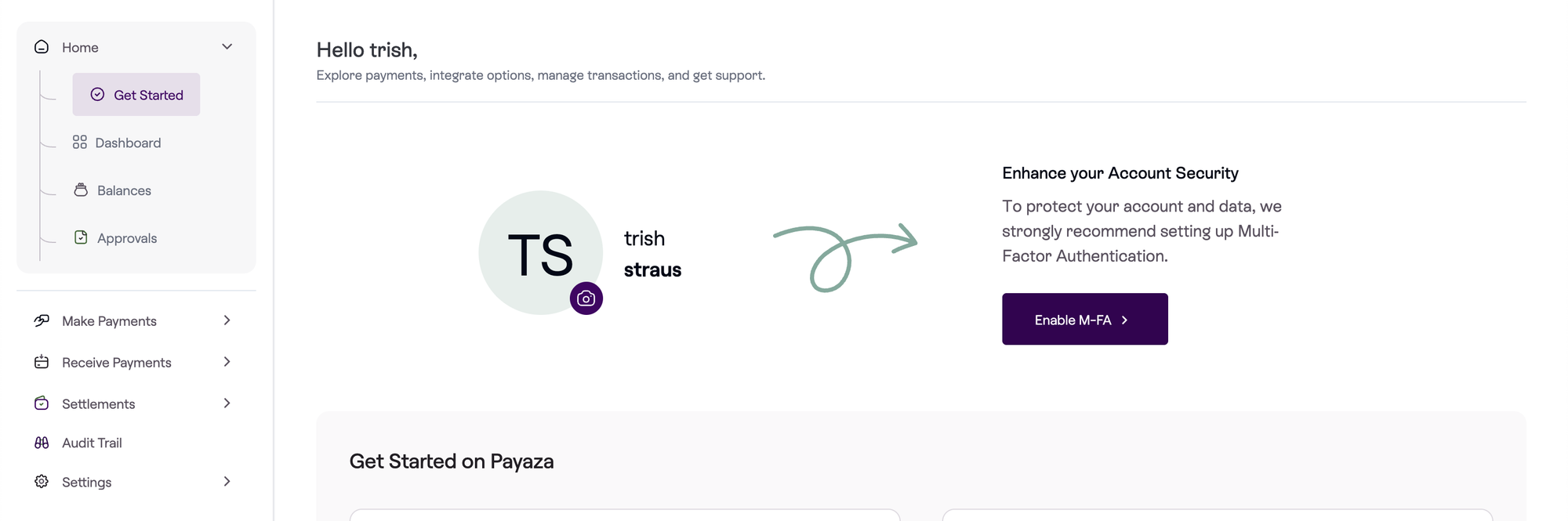
Step 1: Get Started Page
- Log in to your Payaza dashboard.
From your Get Started page, you can enable Multi-Factor Authentication (MFA).
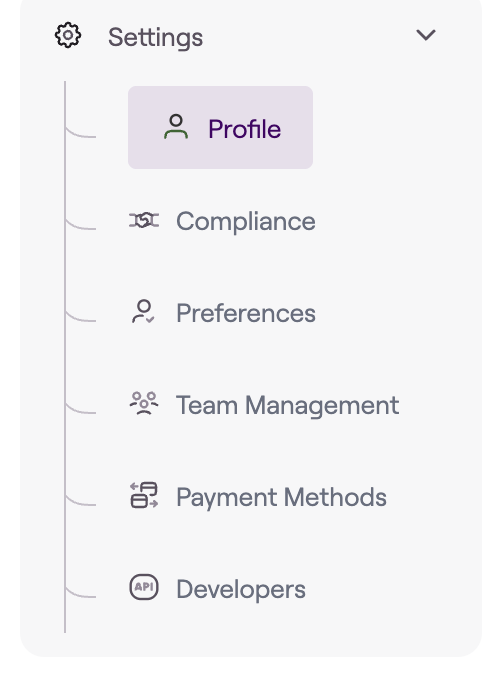
Step 2: Go to Settings
Navigate to Settings → Profile → Enable Multi-Factor Authentication (MFA).
Step 3: Find the “Multi-Factor Authentication” Section
You’ll see a section Multi-Factor Authentication (MFA) with a toggle button “Disabled,”
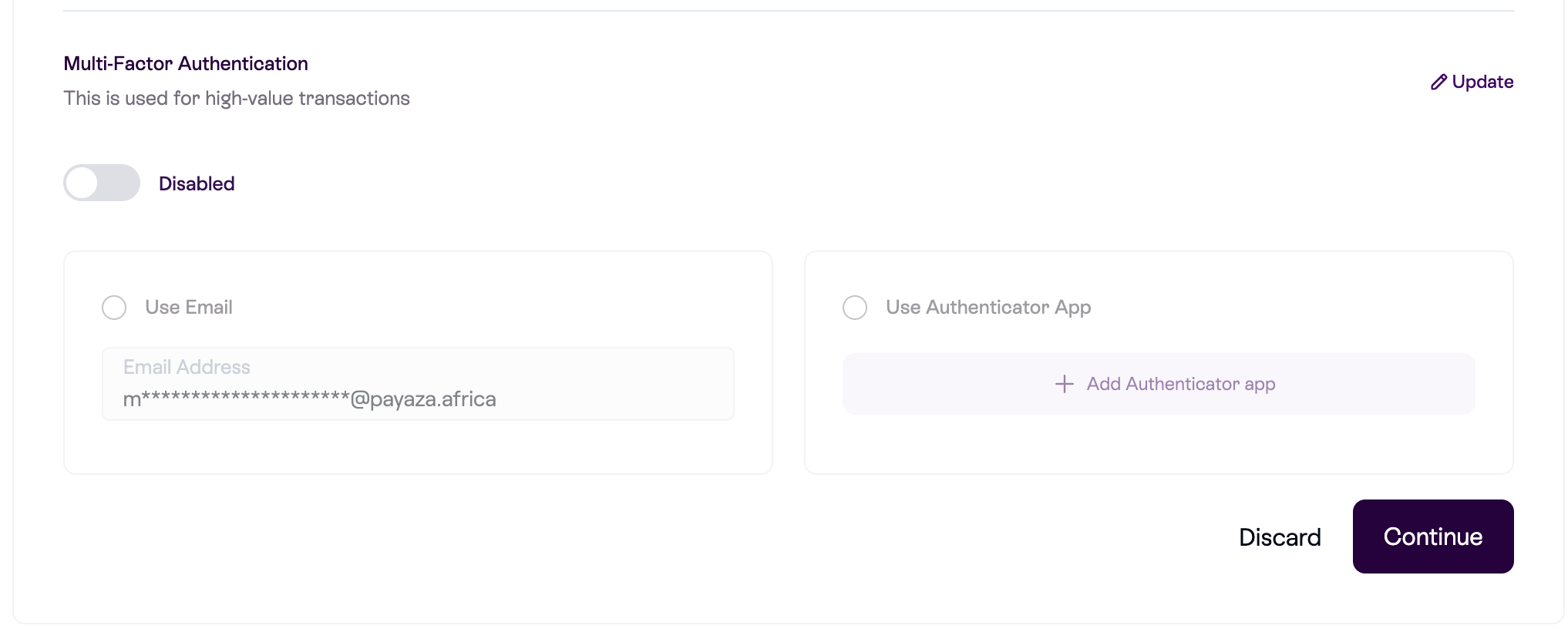
Click the “Update” button and then switch the toggle to “Enabled” to activate MFA.
Step 4: Choose Your Preferred Verification Method
You can select one of the following options:
Use Email: Receive one-time passcodes via your registered email.
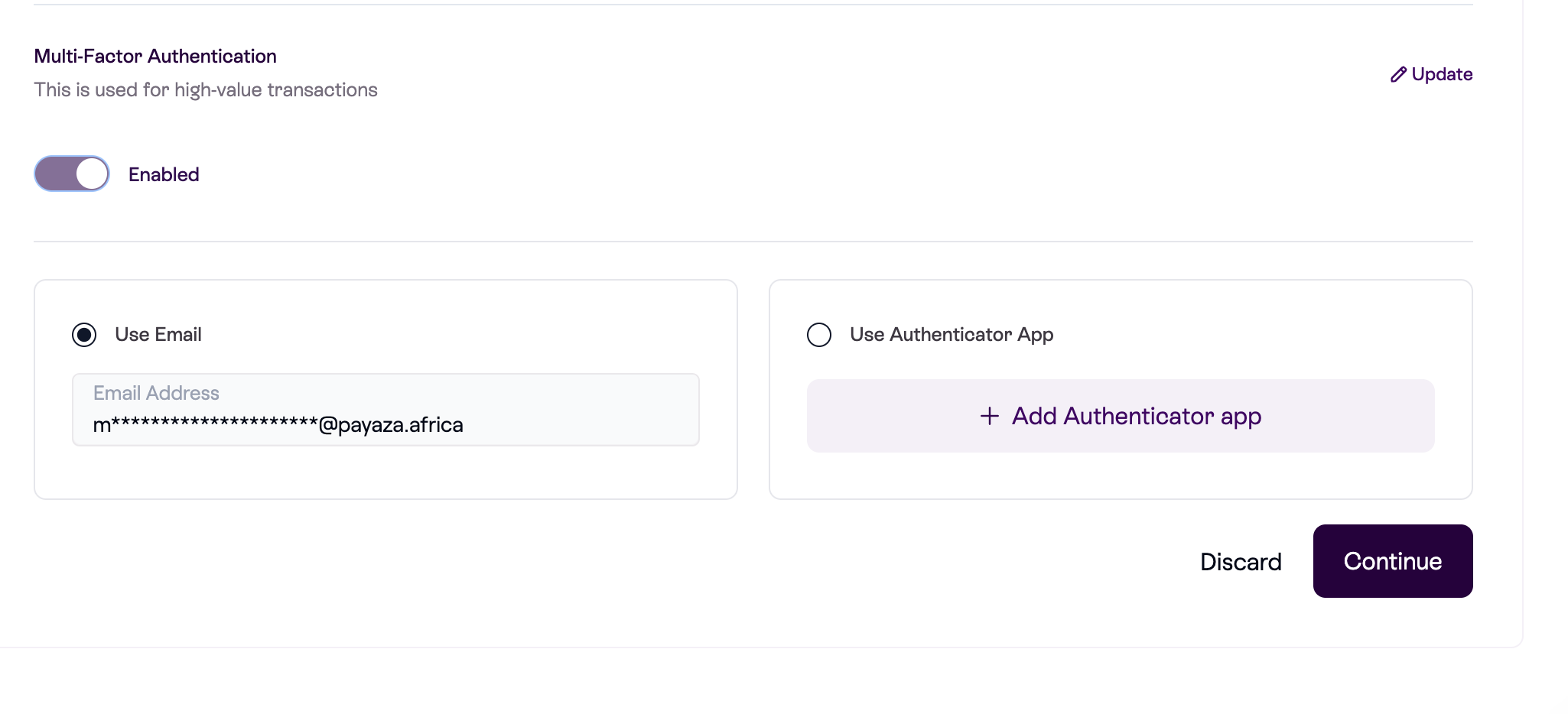
Use Authenticator App: Use apps like Google Authenticator, Authy, or Microsoft Authenticator.
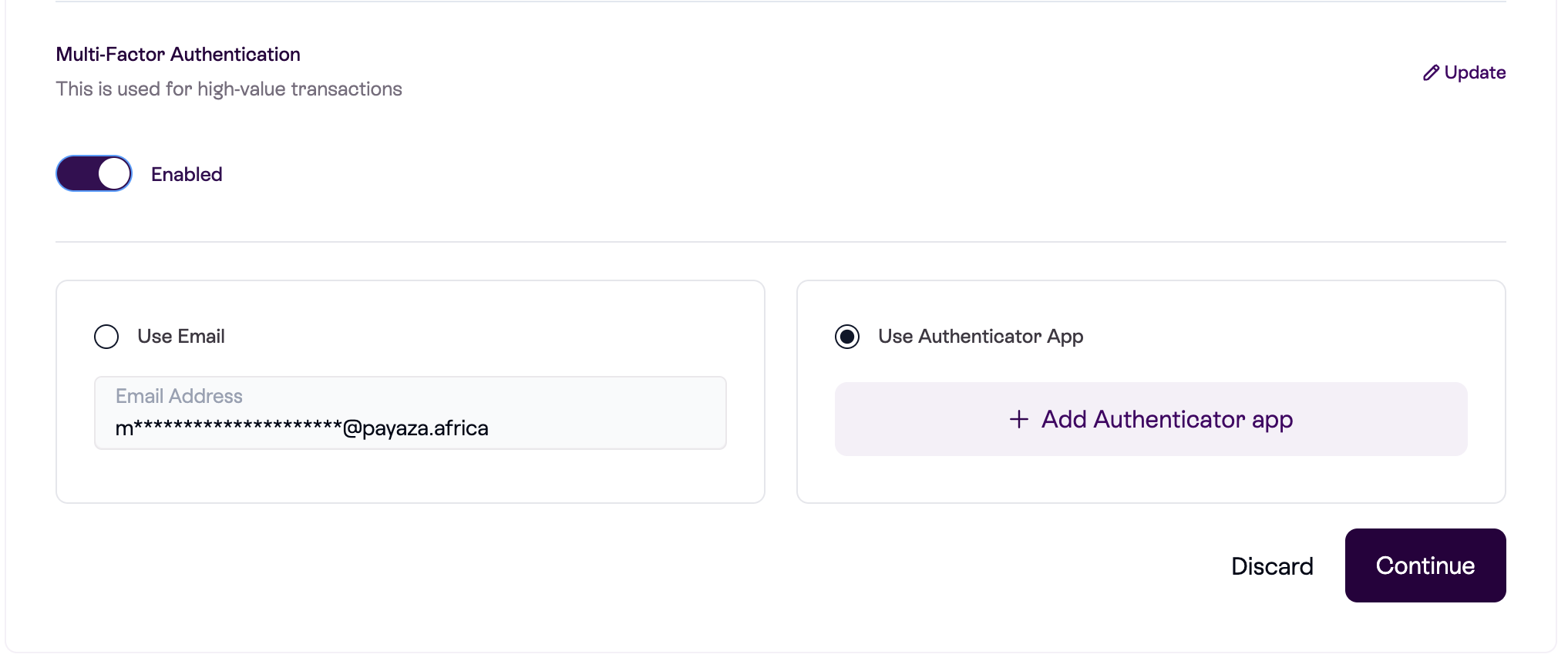
Step 4: Add an Authenticator App (Recommended)
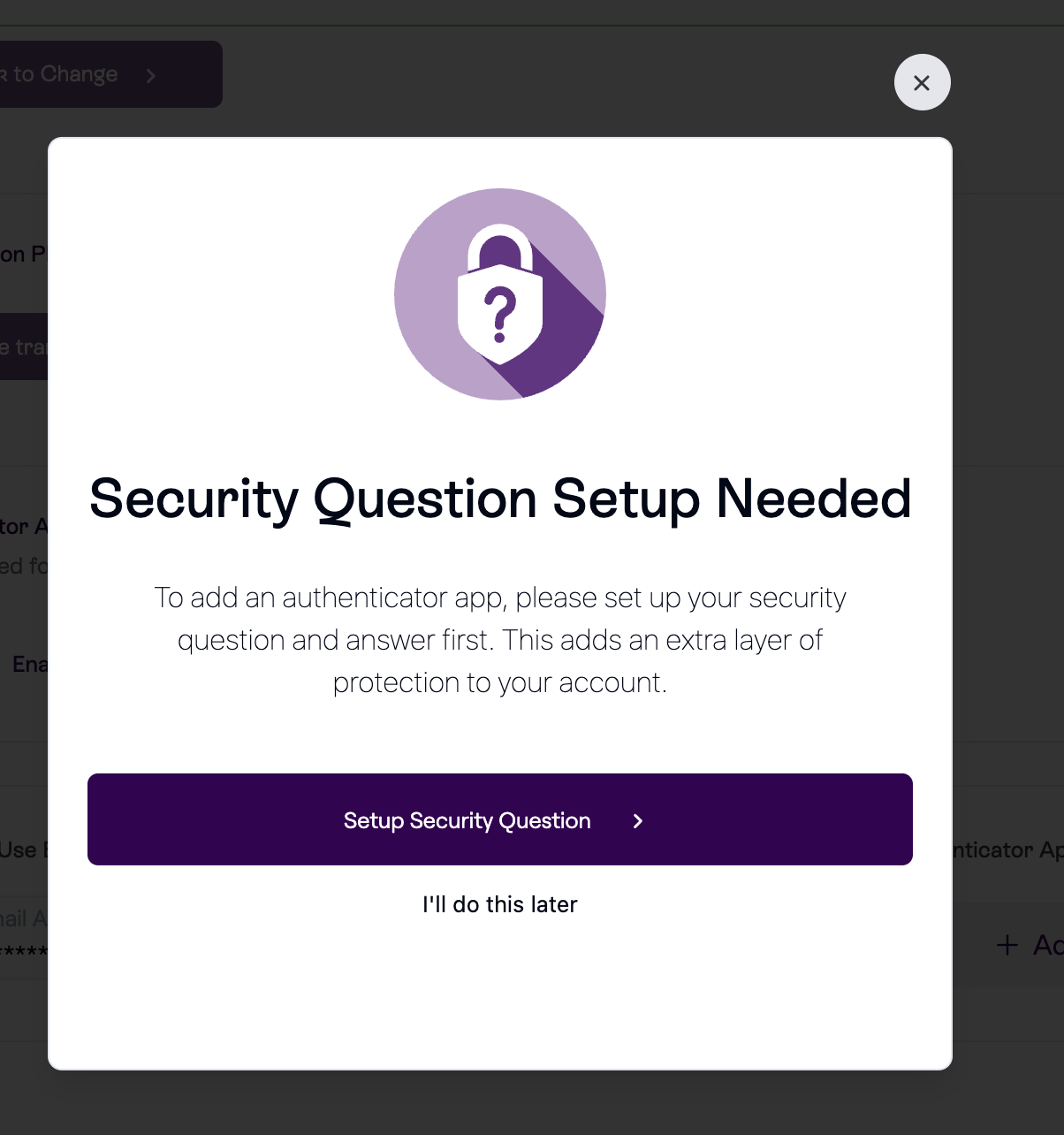
Set Up Your Security Question
Upon selecting the Authenticator App, you will be required to set up your security question and answer. This helps verify your identity during account recovery or when making sensitive changes.
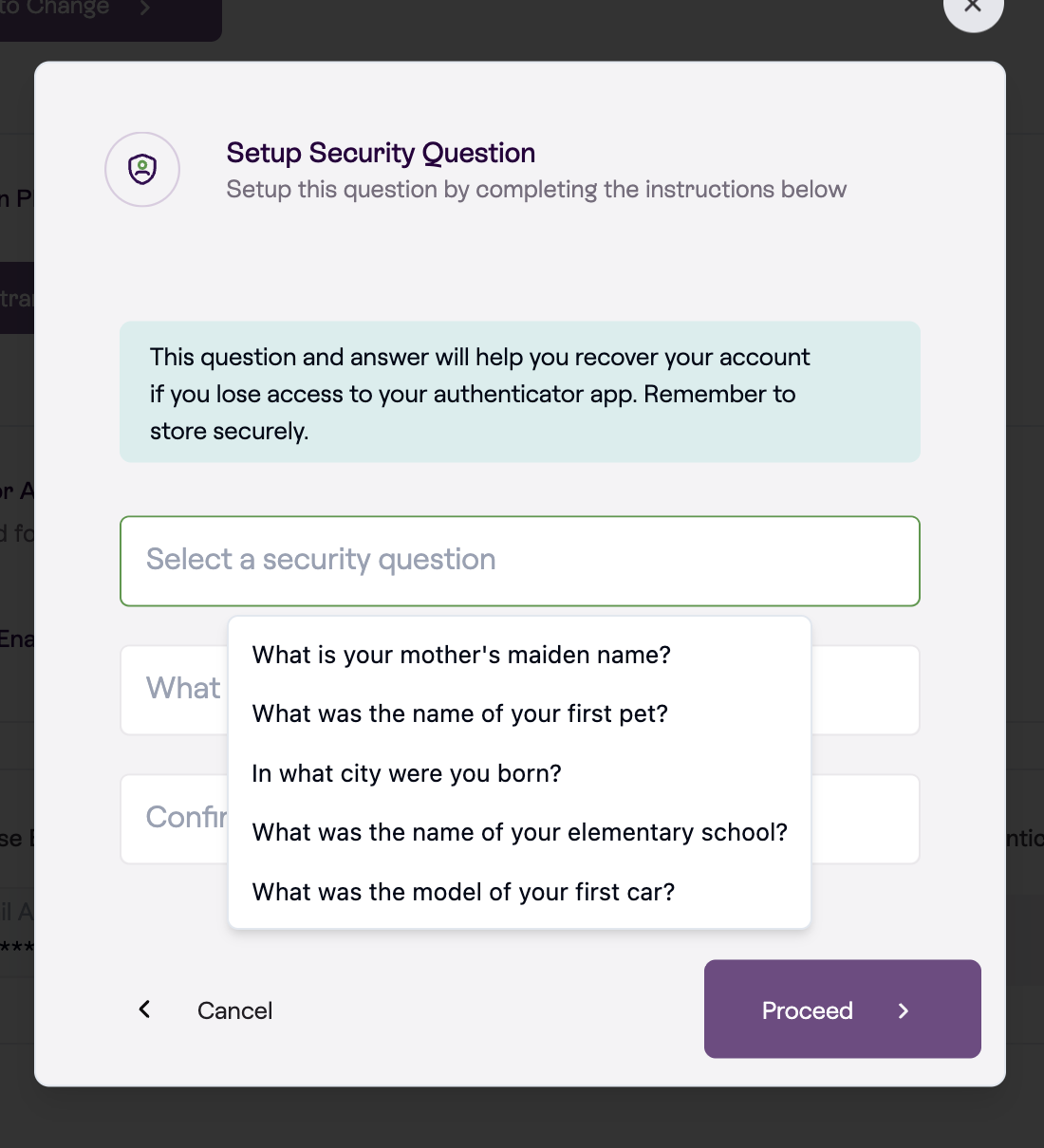
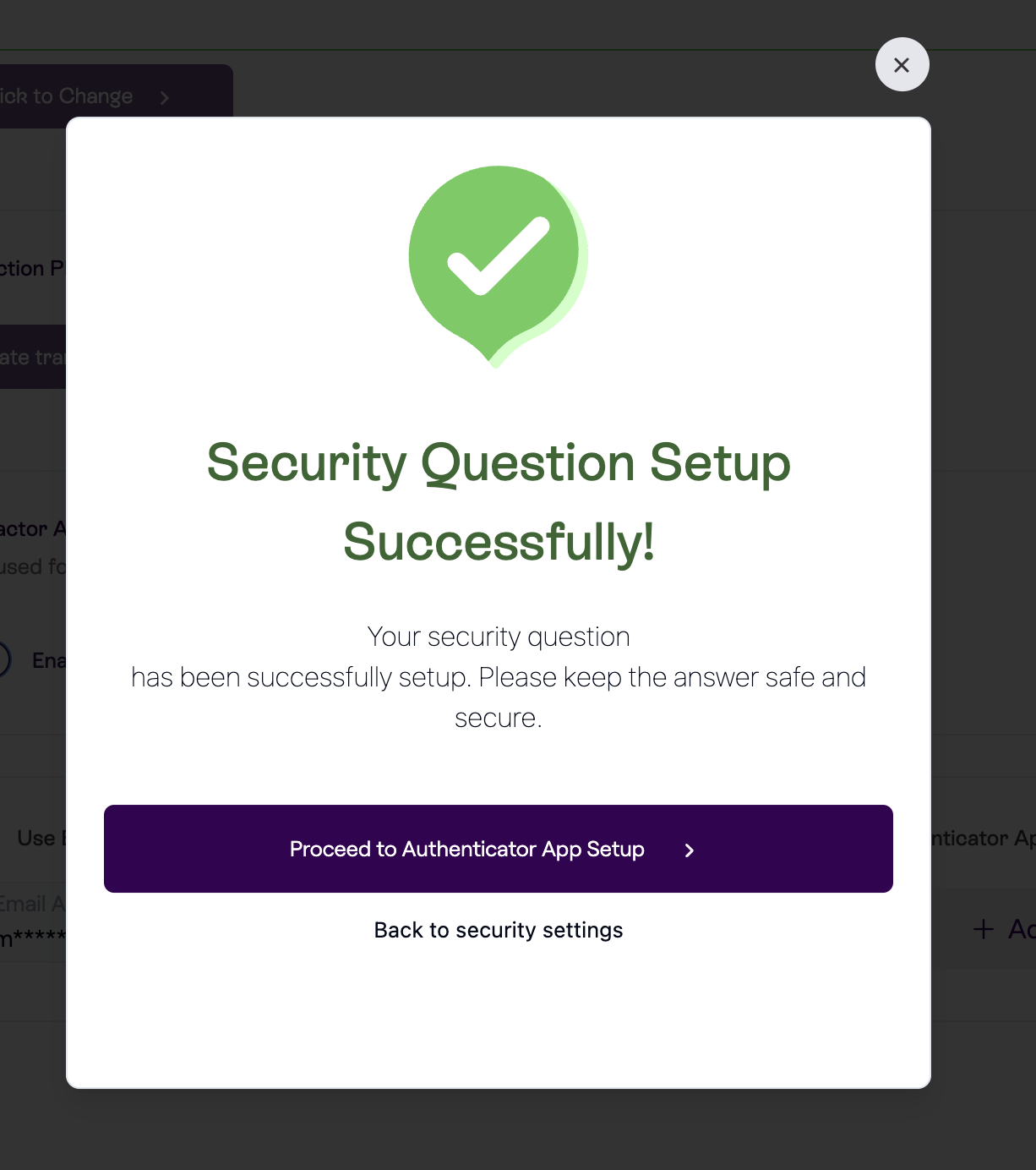
Proceed to Authenticator App Setup
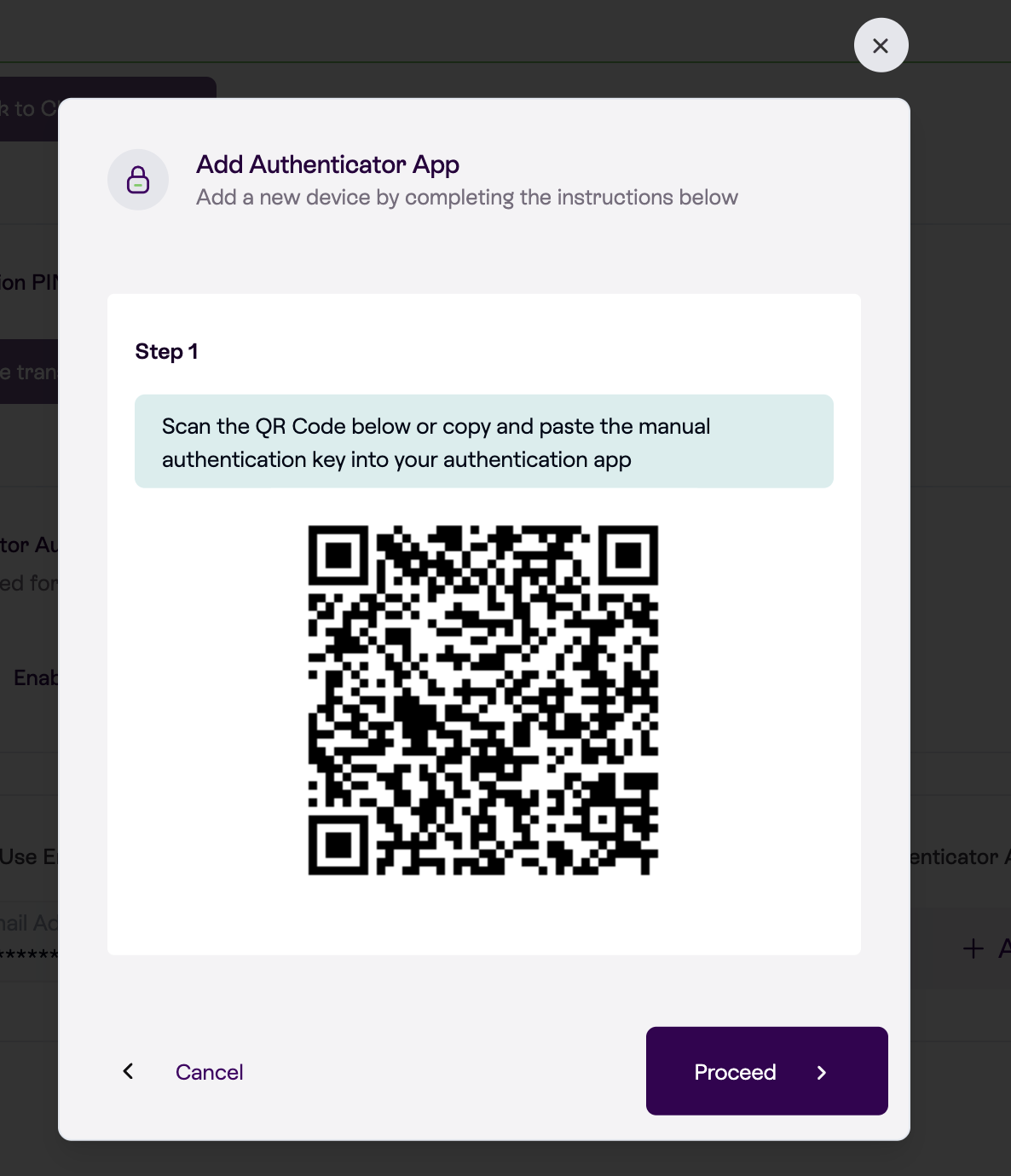
A QR code will appear for you to scan using your chosen authenticator app.
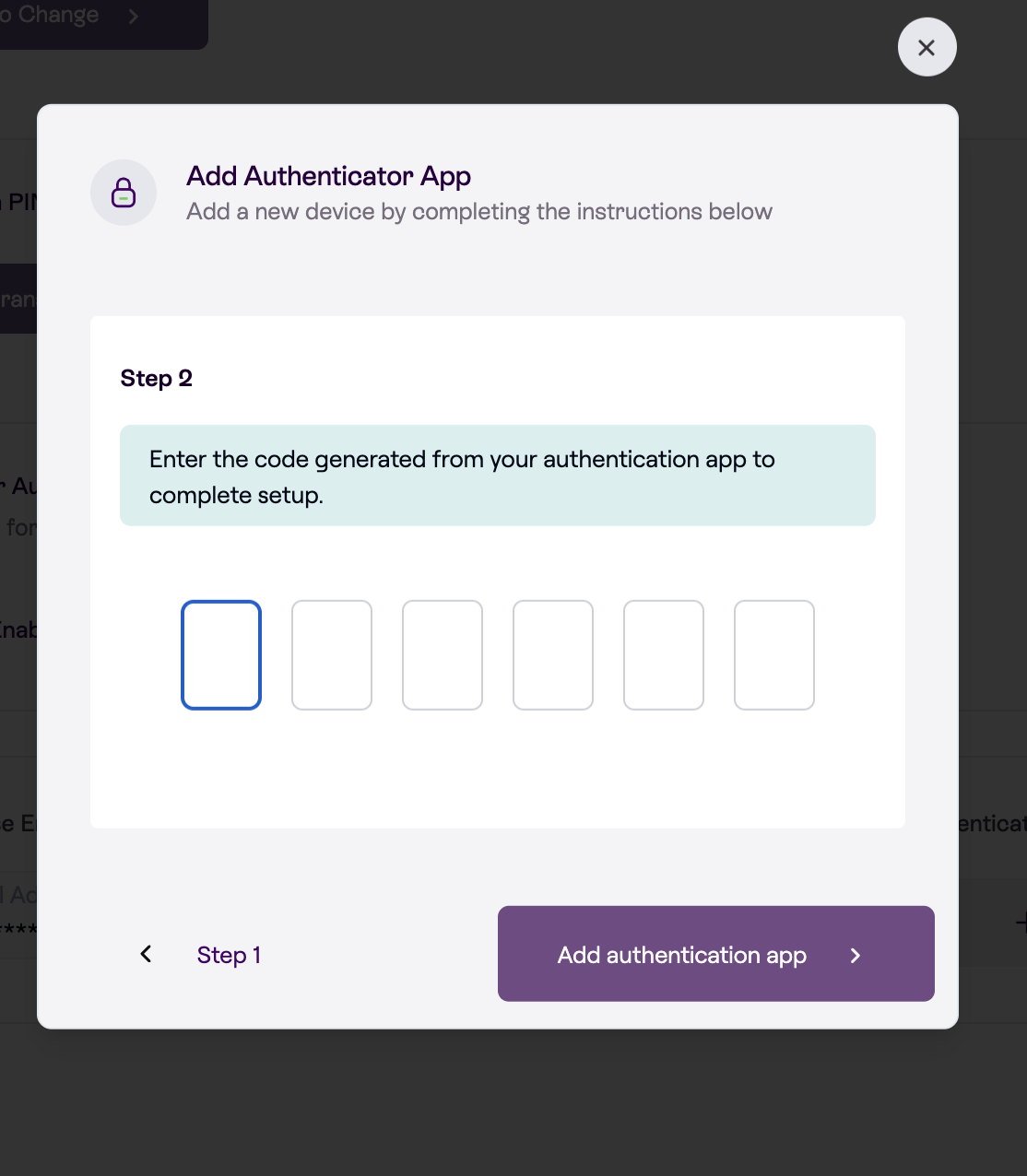
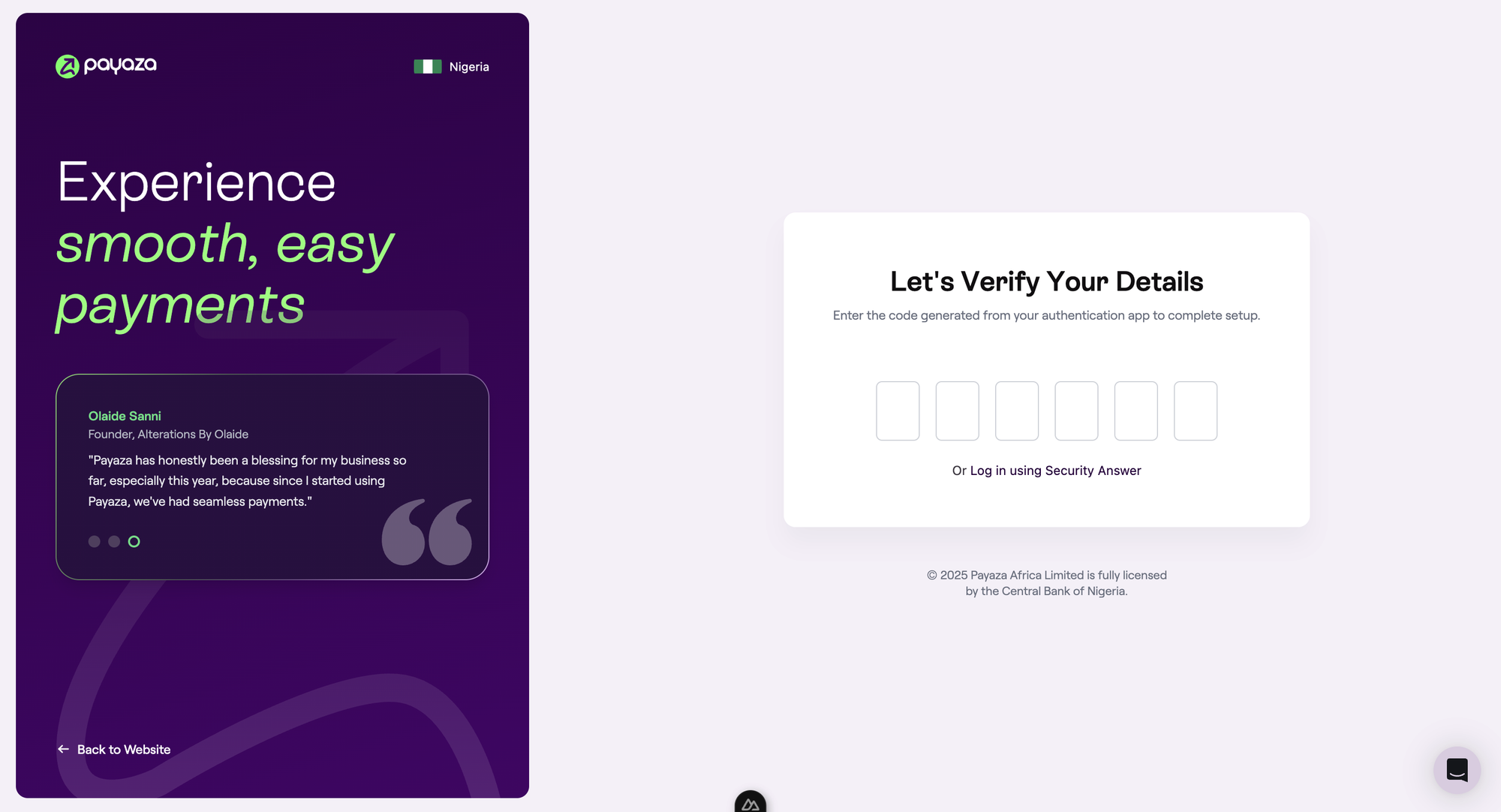
Enter the 6-digit code shown in your app to verify setup.
Step 6: Confirm and Save
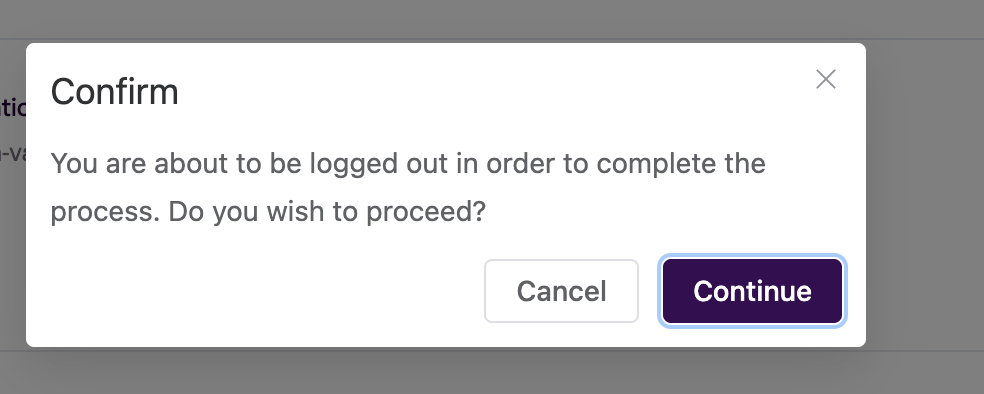
Once confirmed, your MFA status will show as Enabled. Please note that you will be logged out immediately and will need to log in again using your configured MFA method.
Congratulations! Your Payaza account now has an added layer of protection.